Easy Reader - PDF Viewer
- 4.6
- Rating
- 1.00M
- Installs
- Free
- Price
 Analysis by App-foxy
When I try a new document app, I usually ask one practical question first: will it make the files on my phone easier to handle, or will it simply add another icon to an already crowded screen? Easy Reader - PDF Viewer, developed by Rundong Technology, makes a convincing case for the first option. Its central appeal is the ability to bring PDF reading, file viewing, and multiformat document handling into one productivity app instead of making me jump between separate tools.
That sounds straightforward, but it changes the way I use my phone for everyday paperwork. A PDF from work, a text document sent in a chat, and an image of a receipt can all belong to the same short task. With a focused document manager, I can stay in one place while I locate and open those files. The real value is not merely opening PDFs; it is reducing the small interruptions between finding, viewing, and switching documents.
I would describe this as a practical Android utility rather than a full office suite. It is free, rated for Everyone, and currently listed as version 1.2.2, with Android 8.0 or later required. The app has reached over one million installs and holds a 4.5 average from around ten thousand ratings, so it is clearly aimed at ordinary phone users who want a simpler way to deal with documents.
You May Also Like

 Blood Strike: 2.5 Anniversary
Blood Strike’s Loadouts Turn Every Drop Into a Tactical Gamble
A close look at Blood Strike’s custom loadouts: how fast access to signature weapons reshapes its battle royale rhythm, rewards preparation, and narrows the gap between fights.

 Pandora - Music & Podcasts
Pandora’s Music Is Easy to Start, but Harder to Recover
Pandora’s strength is its low-effort path from a seed to a station. Its weak spot is how much confidence it asks you to place in connection, setup, and quiet recovery.

 8 Ball Pool
 Is Built on Rivalries, Rematches, and Routine
A close look at the rivalries, rematches, shared routines, and unanswered safety questions that turn a quick pool match into a persistent mobile community.

 Samsung Music
’s Quiet Strength Is Playing What You Already Own
Its reach comes less from spectacle than from dependable access to a personal library. That simplicity is both the app’s strongest retention engine and its ceiling.

 AccuWeather: Weather Radar
AccuWeather Review: A Quick, Clear Forecast for Everyday Decisions
For everyday plans, the best forecast is the one you can understand quickly. AccuWeather makes rain timing, radar, and local conditions easy to act on, with a few trade-offs.

 Hill Climb Racing
Why Hill Climb Racing Still Turns Crashes Into One More Run
A tiny car, a bumpy hill and one more upgrade: Hill Climb Racing keeps resurfacing because its simple chaos makes every near-miss feel personal.
More From Our News Desk
View All News


One workspace for PDFs and everyday files
I like that this section treats Easy Reader as a way to start a document task, not as a promise to replace every tool on my phone. That distinction matters when files come from different places: the useful test is whether one viewing routine makes them easier to check. Next, I look at how that idea holds up in ordinary mobile situations.
The capability that matters most
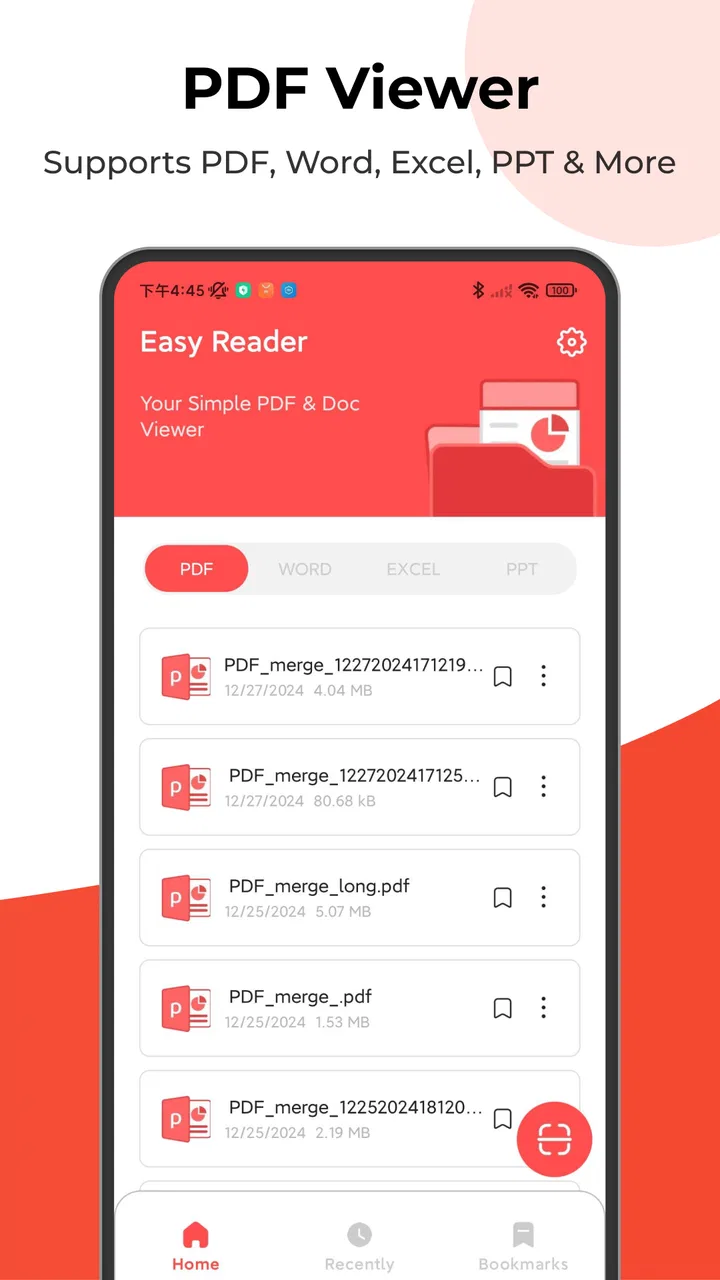
The most useful capability is the combination of a PDF reader and a multiformat file viewer. In practice, I do not think of it as a specialized PDF tool alone. I think of it as a front door for documents stored on an Android phone. That distinction matters because many document tasks are mixed-format tasks.
For example, I might download a PDF instruction sheet, keep a related image in my gallery, and receive a text-based document through a messaging app. A narrowly focused PDF reader handles only the first part. Easy Reader is more convenient when the job involves moving between several kinds of files and I want one familiar place to begin.
This approach is especially helpful for people who do not want to manage separate reader apps for every format. It also suits phones used as temporary workstations: not replacements for a desktop in every situation, but useful devices for checking documents while commuting, shopping, studying, or handling an unexpected request away from a computer.
There is a subtle difference between “supports documents” and “helps me manage documents.” The latter is about the moment before reading. I need to find the right file, recognize it among other downloads, open it without guessing which app will work, and return to another file without losing my place mentally. A combined viewer can make that sequence feel less fragmented.
Why a single app can be more useful than several alternatives
The usual alternative is to rely on the phone’s built-in file manager, a separate PDF reader, and perhaps another app for office documents. That arrangement can be perfectly adequate if I work with only one format. It becomes less pleasant when files arrive from different sources and are scattered across downloads, messaging folders, and shared storage.
Easy Reader’s advantage is therefore organizational rather than dramatic. I would choose it when I want a broad viewing entry point, not when I need a complete editing environment. A dedicated PDF application may be better for advanced annotation, form filling, or highly specialized reading controls. A full office suite remains the stronger choice when I need to create and revise documents rather than inspect them.
That trade-off is important. The app’s all-in-one design can simplify access, but “all-in-one” should not be mistaken for “does everything.” I see it as a reader and manager first. If my goal is to review a file, confirm its contents, compare several documents, or keep routine paperwork accessible, the concept fits well. If my goal is to perform serious document production, I would look elsewhere.
How I approach the first session
After installing a document viewer, I recommend starting with a small, realistic test instead of immediately moving every file into a new workflow. I would open one PDF from the Downloads folder, then try a second document in another format, and finally return to the file list. This quickly shows whether the app matches the way I name and store files.
I also find it useful to test the app with documents that resemble real life: a long manual, a short confirmation document, and a file whose name is not very descriptive. The last test is revealing because document management is not only about rendering pages. It is about recognizing the correct item when several files look similar.
Keeping a simple folder habit makes the application more effective. I would separate current paperwork from old downloads and avoid treating the app as a replacement for all storage organization. A viewer can make files easier to open, but it cannot compensate for a completely chaotic file collection. The best result comes from pairing the app’s broad access with sensible naming and folders.
What using it feels like in real situations
On a phone, connectivity can shape the steps around a document: receiving it, locating it, and returning to it later. I find it helpful to notice which parts of my routine depend on a network and which depend on the file already being available on the device. The scenarios that follow make that practical distinction clearer without assuming a particular offline behavior.
A realistic everyday workflow
Imagine that I am leaving home for an appointment and receive a confirmation document in a chat. I download it, open Easy Reader, and use the document view as the starting point for checking the details. Later, I need an attached image and a separate reference file. Instead of opening unrelated applications and trying to remember where each item went, I return to the same document-focused environment.
This is not a flashy scenario, but it is exactly where a utility like this earns its place. The benefit appears in the transitions: download, locate, read, close, find another file, and continue. Each transition is small, yet repeated interruptions make phone-based paperwork tiring. A unified viewer reduces the number of decisions I need to make.
For a student, the same workflow could involve reading a PDF handout, checking a text document, and opening an image of handwritten notes. For a freelancer, it might mean reviewing a brief, checking a reference file, and confirming a receipt before sending a reply. For a family member helping with forms, it can mean opening documents from different sources without explaining several separate apps.
Reading on a phone rather than editing on a phone
Phone screens are convenient for checking information, but they are not ideal for every document task. Easy Reader makes the most sense when I need to consume or verify content. I can use spare moments to read a manual, confirm an appointment file, inspect a statement, or look up a detail in a saved document.
That focus also tells me when not to use it. If I need to rewrite several pages, build a spreadsheet, design a presentation, or perform detailed markup, a larger screen and a dedicated editor will save time. The app may help me view the source file, but viewing is not the same as producing polished work.
This distinction prevents disappointment. I would install it for access and review, not because I expect it to replace every productivity application on my phone. Its strength is the front end of a document task: getting to the content and making it readable in a convenient place.
Handling a mixed collection of files
One of the less obvious benefits of a multiformat viewer is that it changes how I think about file compatibility. Instead of asking which app created a document, I can begin by asking what I need to do with it. If the immediate goal is simply to read or inspect it, a broad viewer is often more convenient than opening the original creation tool.
This is useful when files come from several people who use different software. I do not need to make the sender explain the format before I can try to view it. That said, I would still keep the original file and avoid assuming that a viewer preserves every editing detail. A viewing workflow is safest when I am inspecting content, not altering the source.
Another practical tip is to use the app as a temporary review station rather than a permanent archive. I would periodically remove obsolete downloads and keep important originals backed up elsewhere. This makes the document list easier to scan and reduces the chance of opening an outdated copy when several versions exist.
Questions about compatibility and device age
The Android requirement is relatively approachable: the app works with Android 8.0 and later. That makes it suitable for many older phones as well as newer devices, although the experience will naturally depend on the phone’s screen, storage, and general responsiveness.
If a document feels awkward to read, I would first consider the device and the file itself rather than judging the whole concept immediately. A dense page designed for desktop viewing can be uncomfortable on any phone. In that situation, rotating the device, zooming thoughtfully, or moving to a tablet or computer may be the better answer.
The app is free, which lowers the barrier to trying it as a secondary reader. I would still evaluate it by the time it saves rather than by the absence of a purchase price. A free utility is worthwhile when it becomes a dependable part of a routine; it is unnecessary if the phone’s existing tools already open every file I use without friction.
Where the convenience comes with limits
A smooth document workflow is most noticeable when something interrupts it, such as a weak connection or an unexpectedly hard-to-find file. I would separate network trouble from storage and compatibility issues before deciding the app itself has failed; that simple check can prevent needless retries. The next section weighs those limits and the recovery habits that make mobile document handling less frustrating.
The broad approach is not automatically the deepest one
My main reservation is the same feature that makes the app appealing: its breadth. A multiformat viewer has to serve different document types, so it may feel less specialized than an app built solely around PDF reading. Users who care about advanced reading controls, detailed annotation, professional form workflows, or intensive document editing should compare their needs carefully before making this their primary tool.
For casual reading, broad support is a strength. For a demanding professional workflow, specialization can matter more than convenience. I would not discard a dedicated PDF app if it already gives me the exact navigation, markup, or accessibility tools I depend on. Easy Reader is more compelling when my problem is scattered access rather than a lack of advanced PDF features.
File management still needs user discipline
A central viewer does not magically make a phone’s storage tidy. If I download multiple copies of the same document, use vague filenames, and leave everything in one folder, I can still waste time searching. The app can provide a more convenient place to browse, but I remain responsible for deciding which files are current.
My practical rule would be to rename important files as soon as I save them and delete duplicates after a task is complete. For recurring paperwork, I would use clear names containing the subject and month rather than relying on the automatic names created by downloads. These habits make any document app more useful, and they are particularly valuable when the app is serving as a general-purpose viewer.
Privacy and workflow judgment
Documents often contain personal, financial, academic, or work-related information. I would treat Easy Reader as a viewing tool and use the same care I apply to any app that opens local files. Sensitive documents should not be left casually accessible on a shared phone, and I would avoid storing unnecessary copies after the task is finished.
This is not a criticism unique to this application. It is a reminder that convenience should not replace judgment. A document manager is most comfortable when I know where my files are, why I kept them, and who can access the device. For confidential professional work, I would also follow the storage and handling rules set by the organization involved.
When another option is better
I would choose a dedicated PDF reader over this app if PDF reading is my only requirement and I already rely on specialized controls. I would choose a full office suite if I need to edit, format, or create documents regularly. I would choose the built-in file manager if my phone already handles my limited collection quickly and reliably.
Easy Reader earns its place between those choices. It is more focused than a bare storage browser and less ambitious than a complete office package. That middle position is useful, but it also means the app is not an automatic recommendation for every Android owner. The right question is whether mixed-format viewing and easier document access solve a problem I actually have.
Who benefits most from this approach
Easy Reader makes the most sense for people who regularly inspect PDFs and other documents on Android, especially when their files arrive through varied everyday channels. I would still choose a specialist reader or office suite for demanding markup or document creation, and I would keep file names and folders clear either way. The closing recommendation focuses on when this convenience-first approach is actually worth adopting.
People who use their phones as practical work tools
I think the strongest audience is made up of people who regularly receive documents away from a desk. Students checking course material, freelancers reviewing client files, travelers carrying confirmations, and families managing downloaded forms can all benefit from having one document-oriented starting point.
It is also a sensible option for users who dislike maintaining several overlapping apps. The free price makes experimentation easy, while the Everyone age rating keeps the product approachable for a broad household audience. I would particularly recommend trying it if the current routine involves opening a file manager, guessing which reader supports a document, and repeating that process several times a day.
Users who should think twice
I would be more cautious if my work depends on advanced editing or if I need a highly specialized PDF environment. In those cases, a general viewer may become an extra step rather than a shortcut. The same applies to someone whose files are already well organized and whose existing reader opens everything without delay.
There is no advantage in installing another app simply because its description sounds broad. The benefit appears when the app changes a recurring behavior for the better. If I rarely open documents, or if my phone is already comfortable with my current workflow, Easy Reader may not add enough value to justify changing habits.
My recommendation after using the concept in practice
Rundong Technology has taken a useful, understandable direction with this productivity app. Its strongest idea is not that it can be everything; it is that common document tasks can begin in one place. That makes it easier for me to move from a downloaded file to a readable document without constantly thinking about which application should handle it.
I would recommend Easy Reader - PDF Viewer to Android users who want a free, approachable way to read PDFs and inspect documents in several formats, especially when their files arrive from many different sources. I would keep a specialized reader or office suite alongside it when my work demands deeper tools.
In the end, this is a convenience-first choice. It is most successful when I use it as a clean access point for everyday paperwork, maintain sensible file habits, and understand the difference between viewing and editing. For that role, its broad document focus feels practical rather than excessive, and its current 4.5 average from around ten thousand ratings reflects why many users find that approach worthwhile.
FAQs for Easy Reader - PDF Viewer
01What features does Easy Reader - PDF Viewer offer?
Easy Reader - PDF Viewer provides a comprehensive set of features, including easy navigation, text highlighting, bookmarking, and annotation capabilities. It supports multiple file formats, such as PDF, ePub, and more. Additionally, it offers a customizable reading mode with adjustable brightness and text size to enhance your reading experience.
02Is Easy Reader - PDF Viewer compatible with both Android and iOS devices?
Yes, Easy Reader - PDF Viewer is designed to work seamlessly on both Android and iOS platforms. The app is optimized to provide a smooth reading experience across different devices, ensuring that users can access their documents and eBooks regardless of the operating system they use.
03Does Easy Reader - PDF Viewer require an internet connection to function?
No, Easy Reader - PDF Viewer does not require an internet connection for basic functions such as reading, highlighting, and annotating documents. However, features like cloud storage integration and document sharing may require internet access to sync or share your files with other devices.
04Are there any in-app purchases or subscriptions in Easy Reader - PDF Viewer?
Easy Reader - PDF Viewer offers a free version with essential features. However, there may be in-app purchases or subscription options for advanced features like cloud storage integration, ad removal, or premium support. It's advisable to check the app's details on the app store for specific pricing and feature information.
05How user-friendly is Easy Reader - PDF Viewer for beginners?
Easy Reader - PDF Viewer is designed with a user-friendly interface that makes it accessible for beginners. The setup process is straightforward, and the intuitive navigation ensures users can easily find and utilize tools like bookmarks and annotations. The app also provides helpful tips and guides for new users.
Pros
- User-friendly interface makes navigation simple.
- Supports multiple file formats
- not just PDFs.
- Fast loading times for large documents.
- Annotation tools enhance document interaction.
- Offline access to files for convenience.
Cons
- Lacks advanced editing features.
- Occasional ads can be intrusive.
- Limited cloud storage integration.
- No password protection for documents.
- Free version has feature restrictions.

Easy Reader - PDF Viewer
Gallery